
What on Earth?
a video security system, using a Raspberry Pi and cheap webcams found from Goodwill.
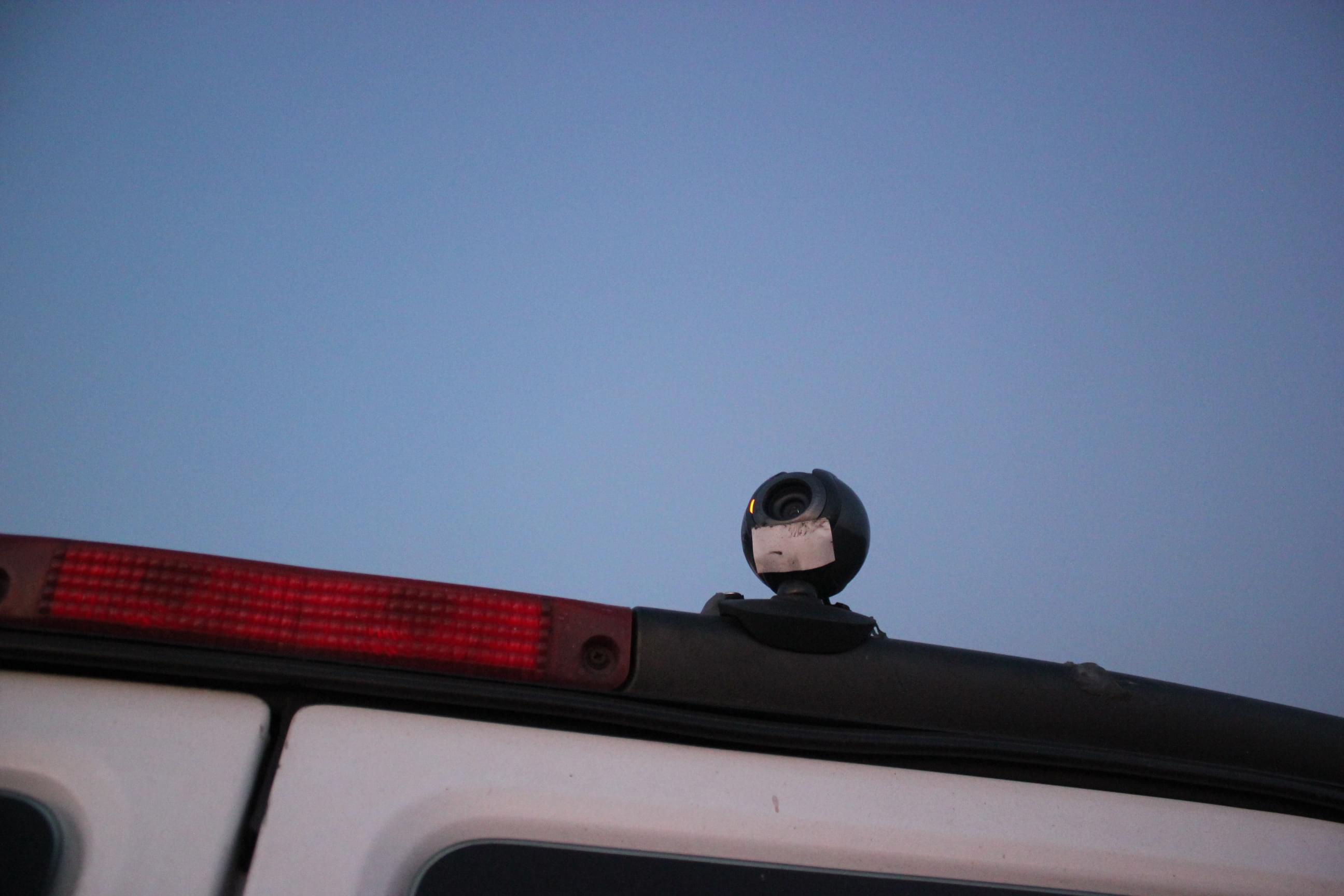
But that’s not all, watch as we monitor live via the internet from your private server or your internal internet.
The Build
Materials
- A computer or pi to run the software (see my guide on getting a pi in your van)
- A webcam or camera that is able to connect to your computer
- Screws, Butyl, Silicon glue, and a drill if mounting like I will
- some beer
The Process
If you’re unsure if you can even get this running, go to the section in this post about “Software”
I’ll asume your webcam is similar to mine and has a base that is usually meant to be placed at the edge of your computer monitor. I will be screwing it on the edge of my GMC which is plastic. I know the Fords and RAMs are metal at the top edges. It’ll just be harder to drill, but i’ll work the same and even stronger on those (although the GMC and Chevy’s are still better ;)).
I pre-drilled holes at the base of my camera to get an idea of where I’ll be laying the screws. Start drilling at those spots where the webcam will be mounted to the vehicle. I then used buytl tape in those holes before screwing to waterproof. Screw it down and make sure it’s secure and your ready for step two.
Now drill a larger hole for the usb cable to go through. I drilled two, but you really should just get a bigger drill bit there Chuck. Pass the USB cable through and I then used Silicon Glue to waterproof that hole. Use a good amount, you’d rather use too much than too little and have a leak.
On the inside I used eternabond tape / waterproofing tape to keep the cable on the roof. Since I used clear silicon too I spray painted the top of it white. Sure it doesn’t look as good as a cable gland, but it was a hell of a lotta quicker and easier with this method.
Software
This webcam is your oyster, so how are you going to use it? A live stream? A video file uploaded to another server? We’ll I have good news, we are going to do it all with my repository. Everything you see will be free on https://git.chuckfairy.com/chuckfairy/StreamTeam. I wrote the code so you don’t have to learn javascript and hate yourself for learning javascript.
I will be setting up this myself for sharing a livestream with friends and of course the case somebody takes my beautiful ride and I can hunt them down (with the police).
See config/config.example.js. We will be creating a new config in every case as config/config.js. This example will have all config values.
A Livestream
There’s two ways I’ve configured this to stream. Either the Pi will stream directly, or the Pi will push a stream to another server over the internet. Regardless the livestream server (either pi or internet) will add the following to config/config.js. In this sample I’ll be doing both, but note the config how you would change it.
Streaming through internal internet
1 | module.exports = { |
This uses webcam “/dev/video0” (we will checkout multiple cameras later) and you can see this stream within PI_IP:8000 which comes from the client object in the config.
Streaming through internal internet and a separate server
On a separate server
1 | module.exports = { |
On the Pi
1 | module.exports = { |
Using another config
The option is given to change what config the app will look at. ./app.js --config config/config.other.js.
Recording to a file
Adding more to the config/config.js on this. You’ll need to decide again if the pi is recording to a file or another server. I have some helper code written in StreamTeam to delete files after a certain amount of time. The video files will add up after a certain amount of time.
You can add the objects in this config to your config, or create another config file and run another process using this config. Which would run as follows ./app.js --config config/config.record.js
I run this command via ffmpeg . Also in bin/record-stream.sh in the repository.
1 | Change the url if not doing from the same host |
Now to use it from a config would look like the following.
1 | module.exports = { |
Running it
In the StreamTeam root folder you should see app.js. You can either run as a shell command ./app.js or through node node ./app.js.
To run when the Pi boots up everytime I created the following file in ~/.config/autostart/webcamsecurity.desktop. Note where it says Exec you will change this if your folder structure is not the same. A good way to test if it will run on start is to copy that entire path and run it before you start testing the boot up.
1 | Exec=/home/pi/Sources/StreamTeam/app.js |
Multiple Cameras
You did it once, why not again? When you run the software the only different is you’ll need to create a different config with a different webcam.device specified. The property stream_name will be default by default. So change this to another name.
1 | you might need a full path |
Using whatever stream_name you used, you will be using that in the http client I have provided. Using the GET parameter stream you will specify the value as whatever you used as stream_name. When you are using default you do not need to add a GET parameter.
1 | van.pi:3000/?stream=YOUR_EXTRA_STREAM |
The sample config.
1 | module.exports = { |
Well
If you’re a tech nerd like me, this will be tons of fun. Seeing birds, tree, planes, trains, and automobiles happen right outside the vehicle without having to actually go outside, almost makes me never need to go outside! I give this a 9/10 only taking a point off as it takes a good amount of processing power and on my Pi, it is the hottest thing that it runs.
My suggestion would be to use a newer Pi or an SBC that is more powerful than the Pi.
A Special Thanks
- Node-Media-Server the best darn video media tool I’ve ever seen.
- ffmpeg impossible for me to even imagine it was originally created by one man.